

Using Bookmarks
Sometimes people search for something and want to be able to find it again. There are two ways to approach this: 1) using bookmarks, and 2) your search history. It may be helpful to older adults to bookmark the sites they go to often on their bookmarks bar. You should know how to show someone else how to bookmark a website on common web browsers (Chrome, Edge, Safari, or whichever one they're using) and on phones.
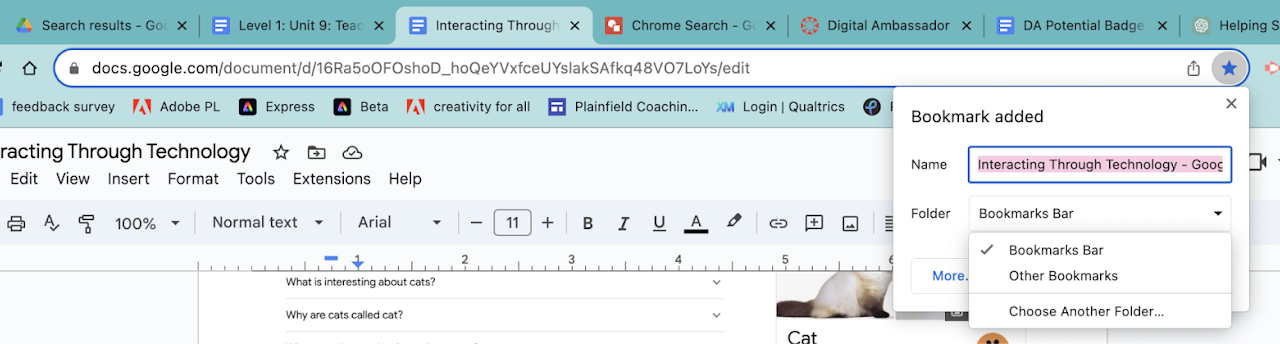
Bookmark a site in Chrome by clicking on the star in the Omnibox. A drop-down will appear and ask where you want to put the bookmark. The Bookmarks Bar is located directly under the Omnibox on your browser. If you don't see the Bookmarks Bar, click on the three vertical dots on the right side of the Chrome screen. Select bookmarks> Select Show Bookmarks Bar.
You'll quickly run out of room on your Bookmarks Bar if you don't shorten the name of the bookmark or create folders. Right-click (command click on a Mac) and select Edit to change the name. Chrome will put bookmarks into Other Bookmarks when it runs out of room on the Bookmarks Bar. A link to Other Bookmarks is displayed on the right side of the Bookmarks Bar. You can also access it through those same three vertical dots. Bookmarks can also be organized in folders you create. You can create topical folders, like Recipes or Gardening, and help your older adults store related bookmarks all in one place.