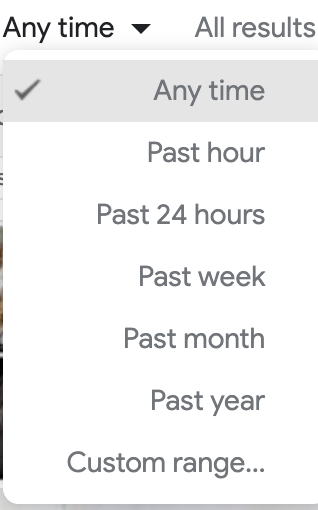


Filtering by Time
A helpful filter on the far right of the search result is the Tools filter. When you click on the Tools filter you display two (2) sub-menus: 1) Time, and 2) Results.
Time allows you to get the most current news based on when it was published. For instance, suppose it was election time. If you wanted to know the most recent poll counts, you could select information within the past hour. If you search just on "hurricanes," you'll get information on all the hurricanes over time--over a billion entries. If you specify in the past 24 hours or week, you'll get information on current hurricanes over time--over a billion entries. If you specify in the past 24 hours or week, you'll get information on current hurricanes.
Tools also change depending on what you are searching for. If you click on the Images filter and look at Tools, you can filter by usage rights and a variety of other filters. Usage rights lets you know if the image is protected by copyright or whether you can use it without having to obtain permission from the creator of the image. You can filter it to "Creative Commons licenses" to find images you can use with the appropriate citation in your work on the Digital Ambassador team, in school, and elsewhere. This is an especially helpful Digital Citizenship skill to model. When you find images in an online search, be sure to use the Tools filter to find those that are not protected by copyright. Just because you can find it online doesn't mean you have the right to use it.
If you click on videos, you have another set of filters. For your handouts, Time will probably be the most useful filter in order to find the most recent information available.